Crew Pad Guide

Your Crew Pad, explained

Everything the pad does, in the order you will meet it: the device itself, one whole flight from booking to logbook, then every app with what it is actually for. Not a specification — a guide for getting things done.

lh-virtual.app Operating system iPadOS 26.12 26 apps Sign in with vAMSYS
Once, then never again

The first five minutes

The pad is a website that behaves like a company tablet. Nothing you have to install, no second password, and the four things below are the only setup there is.

  1. Open it and sign in

    Go to lh-virtual.app and continue with vAMSYS. The vAMSYS account you already fly with — your password never leaves vAMSYS.

  2. Unlock it

    The pad starts locked, like any tablet on a desk. The passcode is the digits of your pilot ID: DLH1049 unlocks with 1049.

    Four or five digits, no separate PIN
  3. Keep it as an app

    Give it its own icon and its own window, without a browser bar — on a phone, a tablet or a computer. On Windows and macOS there is a program to download. Either way it still updates itself; see Install it below.

    Share → Add to Home Screen, or download
  4. Enter your IDs

    SimBrief, VATSIM, IVAO and SayIntentions — typed once in Settings, read by every app that needs them. Without them several apps stay politely empty.

    Settings → Sim Connections

What the pad is — and what it is not

Two sentences that save a lot of questions further down.

It is

A second window on the same data

Roster, eDesk, mail, logbook and Academy progress are the same records you see in the dashboard and in vAMSYS. The pad is another client, never a second copy.

It is not

A tracker or a replacement for Pegasus

The pad never talks to your simulator. Pegasus records the flight and files the PIREP; the pad prepares the flight and reads the result.

Good to know

Your layout belongs to your account

Pages, folders, widgets, installed apps and settings follow your pilot ID, not the browser. Open the pad on another computer and it looks the same.

Install it — three ways to the same pad

None of them keeps a copy of anything on your machine. They differ only in how far the browser gets out of the way — and in one thing the desktop program can do that a tab cannot.

Windows & macOS

A program in the Start menu or Dock

One file, one double-click. The pad gets its own window and its own icon, and closing it keeps it ready in the Windows notification area or the macOS Dock — which is why the departure alarm still rings while the simulator is in front of it. The desktop app checks for its own updates; Crew Pad content updates directly from the server.

Windows may warn about an unknown publisher on the first start: More info → Run anyway. On macOS, use Privacy & Security → Open Anyway while the app is not signed.

Chrome, Edge

Install straight from the browser

Open lh-virtual.app and choose Install app — in the address bar, or from the ⋯ menu. You get the same icon and the same window without a browser bar, with nothing to download.

iPad, iPhone, Android

On the home screen

Safari: Share → Add to Home Screen → Open as web app. Chrome on Android offers Install app. The pad then fills the screen the way it was drawn, in landscape.

The pad offers this by itself the first time; the instructions also live in Settings → Home Screen & App Library.

The device

Everything that is not an app

The pad brings its own operating system: lock screen, home screen, dock, widgets, folders, notifications, Control Center and an App Store. If you have used a tablet, you already know it — the map below only names the parts.

The home screen with its parts numbered one to eight 10:49 Saturday, August 15 77 % Frankfurt 31° Clear My Flights LH836 EDDF–EKCH A20N 11:30z LH837 EKCH–EDDF A20N 13:50z AcademyContrailWeather CalculatorCalendarClock Networks 1 2 3 4 5 6 7 8 8
The home screen, drawn to the pad's own proportions. The two shaded strips at the very top are invisible on the device — they are where you pull from.
  1. 1Status barTime, date, signal, battery. Battery and signal follow your active vAMSYS flight, so a long leg really does drain it.
  2. 2WidgetsWeather, My Flights and Calendar. Press and hold empty space to add or remove them.
  3. 3App gridTwo pages. Swipe sideways, or tap a dot.
  4. 4FolderPress and hold an icon until everything wobbles, then drag it onto another icon.
  5. 5Page dotsWhich page you are on — and how many there are.
  6. 6DockFive fixed places: Ops, Manuals, Mail, Settings, App Store. The small lock means the app asks for Face ID.
  7. 7Home indicatorThe way out of every app. Tap it, and you are back on the home screen.
  8. 8The two pull-downsFrom the top edge: Notification Center. From the top right corner: Control Center.

The gestures, all of them

There are seven. Everything else on the pad is a tap.

GestureWhat happensWhere
Tap the home indicatorCloses the app and returns to the home screen. There is no back button anywhere else.In every app
Swipe left / rightChanges home screen page.Home screen
Pull down from the top edgeOpens Notification Center. Swipe back up, press Escape or use ✕ to close.Anywhere, unlocked
Pull down from the top rightOpens Control Center: Airplane Mode, Wi-Fi, dark mode, system sounds, brightness and volume.Anywhere, unlocked
Press and hold an iconEverything wobbles. Now you can drag icons between pages, drop one on another to make a folder, or delete an app.Home screen
Press and hold empty spaceOpens the widget picker.Home screen, page 1
Swipe a notification awayClears that one card. Cards are grouped per app.Lock screen, Notification Center

The passcode, Face ID and what they really protect

Two different things that look like one.

Passcode

The digits of your pilot ID

It unlocks the device. It is deliberately not a secret — every pilot knows their own ID. It exists so the pad behaves like a tablet, not so it keeps anyone out.

Face ID

In front of the apps that hold company data

LHV Ops and Manuals ask for it; Contrail, CheatSheet and flySmart! do not — your own logbook, kneeboard and flight plan belong to you, and in the approach a face check is the wrong thing to need.

The real gate

Your vAMSYS session

Everything the pad shows is fetched and checked on the server against your pilot record. Nobody sees another pilot's flights by guessing a passcode.

Worth knowing

Sometimes the first look is refused

Roughly one open in four, and only ever the first look — the second one goes through. Real hardware does that too. It is not a bug and there is nothing to fix.

Notifications: one system, every app

No app decides how it reaches you. It only decides that something is worth telling — the device does the rest, and does it the same way for all of them.

How a notification travels from its source to the app it opens New eDesk briefing Company mail Severe weather Alarm, event, roaming SOMETHING HAPPENS The device decides · stores it once, never twice · respects your rules · hides confidential text · picks the sound · counts the badge ONE PLACE, ONE BEHAVIOUR Banner, if unlocked Card on the lock screen Badge on the icon Push, even when closed A sound, if enabled Tap it Opens the right app at the right flight, and marks it read.

You control the rest in Settings → Notifications: which apps may notify you, whether previews appear on the lock screen, and whether the browser may push while the pad is closed. Anything marked confidential is never previewed, whatever you set.

Apps, updates and the App Store

The pad has real versions and real updates. Nothing here is decoration.

An update exists when the shipped version is higher than the installed one SHIPPED flySmart! 1.31.0 ON YOUR PAD flySmart! 1.30.2 Lower than shipped? Then there is an update — and the badge on App Store says how many. App Store → your account Every update carries its own release notes. Settings → Software Update The same idea for the operating system itself.
App Store

Four tabs

Today, Airlines, Apps and Partner. Your account, top right, is the way to pending app updates.

Delete and get back

Anything that is not a system app

Press and hold, delete, and get it again from the store whenever you like. Ops, Mail, Settings, App Store, Weather, Clock, Calculator, Calendar, Messages and Photos stay.

Expect a reload

When the App Store updates itself

It replaces the code it is running in, so the interface reloads afterwards. That is the only honest order — and it is written in its release notes.

Red dot on Settings

A pending system update

It comes from comparing versions, never from a switch someone flipped. Settings → Software Update installs it.

Look, sound and language

All of it lives in Settings, and all of it follows your account to the next browser.

You wantWhereNotes
Light or darkSettings → Display & Brightness, or Control CenterA few apps keep their own look on purpose: flySmart!, CheatSheet, the radars, Calculator and simNews are dark either way — a cockpit is not the room around it.
German or EnglishSettings → Language & RegionThe whole device switches, apps included.
Brightness, volumeControl CenterBrightness dims the screen; volume applies to every system sound.
SilenceControl Center → System SoundsOne switch for the whole device.
WallpaperSettings → WallpaperSeparate images for lock and home screen.
Fingerprints on the glassSettings → Display & BrightnessYes, they are on purpose — the glass picks up traces where you touch and swipe, and a cleaning cloth wipes them off. Switch them off if they bother you.
Airplane modeControl CenterSwitches itself on while you are airborne on an active flight. While it does that, the switch is locked.
The whole thing, once

One flight, from booking to logbook

This is the route every leg takes. Three places are involved and they do not overlap: vAMSYS owns the booking, the pad prepares and reads, the simulator and Pegasus do the flying and the filing.

Three lanes: vAMSYS, the Crew Pad, and the simulator with Pegasus vAMSYS CREW PAD SIM & PEGASUS Book a leg PIREP filed LHV Ops · check in eDesk briefing flySmart! uplink CheatSheet Report times & fuel Contrail keeps it Fly it with Pegasus running
You do this on the pad Happens somewhere else
  1. 1vAMSYS · Crew Center

    Book the leg

    Everything starts with a booking. Pick a flight from the timetable or let the roster generator build a whole duty. The pad does not book — it reads what you booked.

    A leg booked in the vAMSYS timetable arrives on the pad about a minute later vAMSYS · CREW CENTER LH830 EDDF → EGLL 06:15z LH836 EDDF → EKCH 11:30z BOOK LH842 EDDF → LFPG 12:05z about a minute later CREW PAD · LHV OPS EDDF → EKCH DLH836 · A20N · 11:30z SCHEDULED
  2. 2LHV Ops · My Flights

    Your duty appears, as a rotation

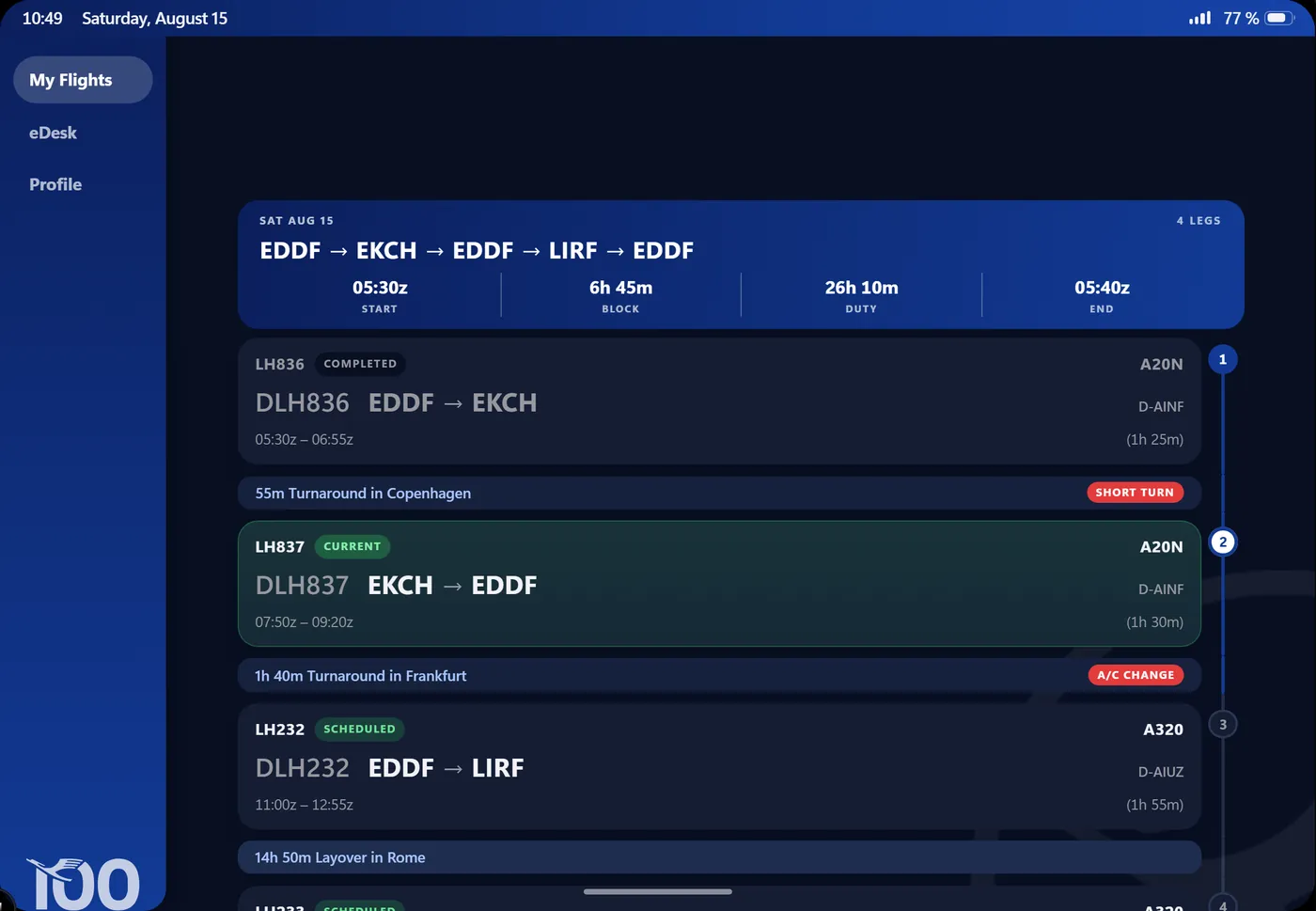
    Not a list of legs — the whole day: start, block time, duty, end, every turnaround and layover between them, aircraft type and registration, and which leg is the current one. Tap a leg for the flight sheet.

    LHV Ops
    LHV Ops showing a four-leg rotation with turnarounds and a layover
  3. 3LHV Ops · the flight sheet

    Check in — this is the switch that matters

    Checking in arms one flight. From that moment the pad generates briefings for that flight: preflight, weather and NOTAM post arrive in eDesk, staggered rather than all at once, and they reach you as notifications even with Ops closed.

    Only one flight is checked in at a time, and the state follows your account — reloading the pad does not check you out.

    LHV Ops → eDesk
    Checking in arms one flight; the four eDesk tabs fill up for it DLH836 EDDF → EKCH A20N · D-AINF · 11:30z CHECKED IN Inbox 3 Preflight Stand · Gate PDC / DCL A-CDM target time Weather METAR · TAF both ends NOTAM THE OPERATING WINDOW 3 h before off-block 1 h after arrival Outside it, the pad stays quiet on purpose.
  4. 4flySmart! · Uplink

    Bring in the OFP

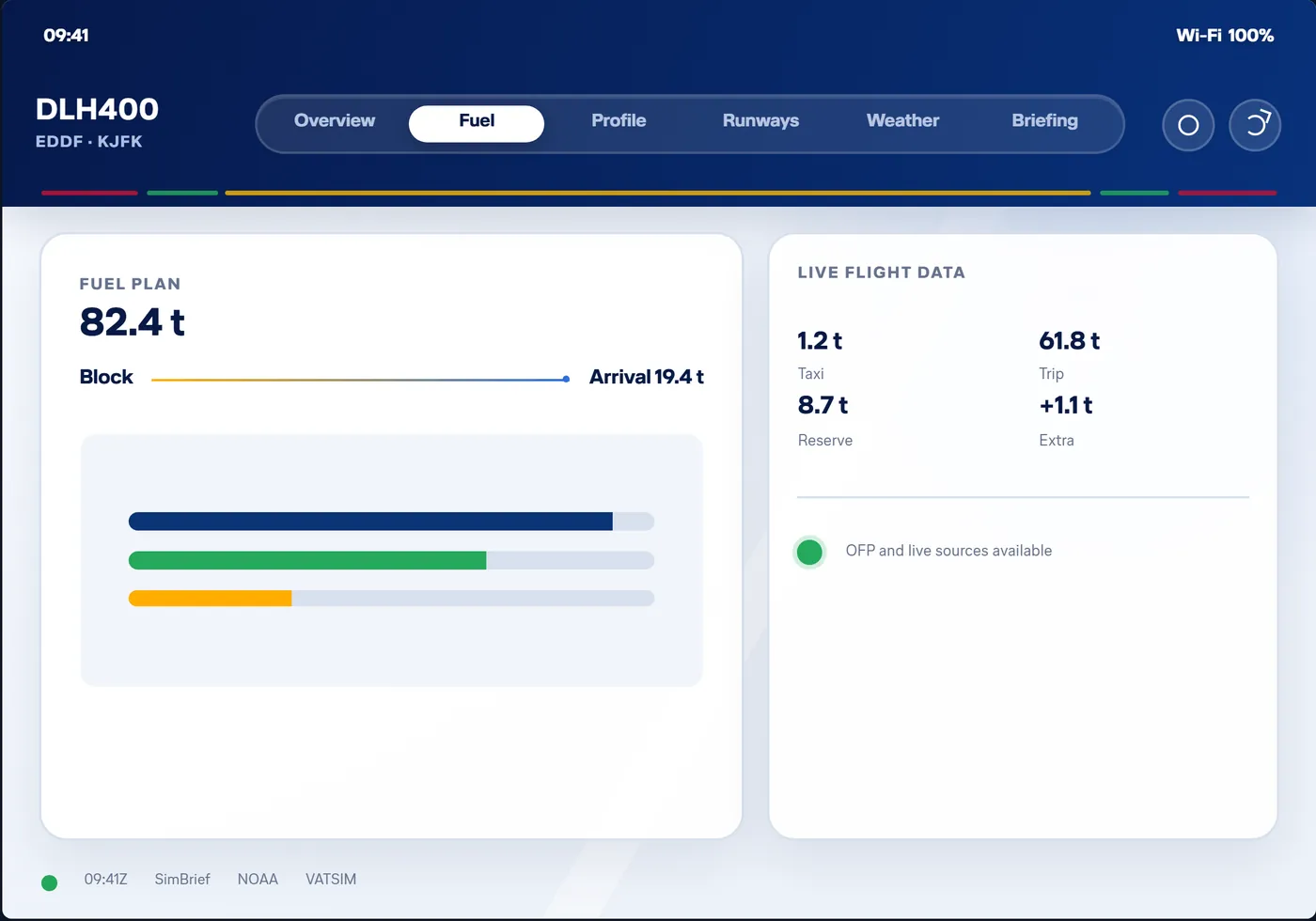
    Plan the flight in SimBrief as usual, then press Uplink. The pad fetches the newest plan for your SimBrief ID and lays it out across seven pages: Overview, Times, Flightplan, Route, Runways, Weather, Briefing.

    The uplink is always a deliberate press. The app never grabs a plan by itself, because SimBrief always hands out the newest one — and a pad that silently adopts the flight from the day before has taken a decision that is yours.

    flySmart!
    flySmart! showing the overview page of an operational flight plan
  5. 5CheatSheet · the kneeboard

    One sheet for the whole leg

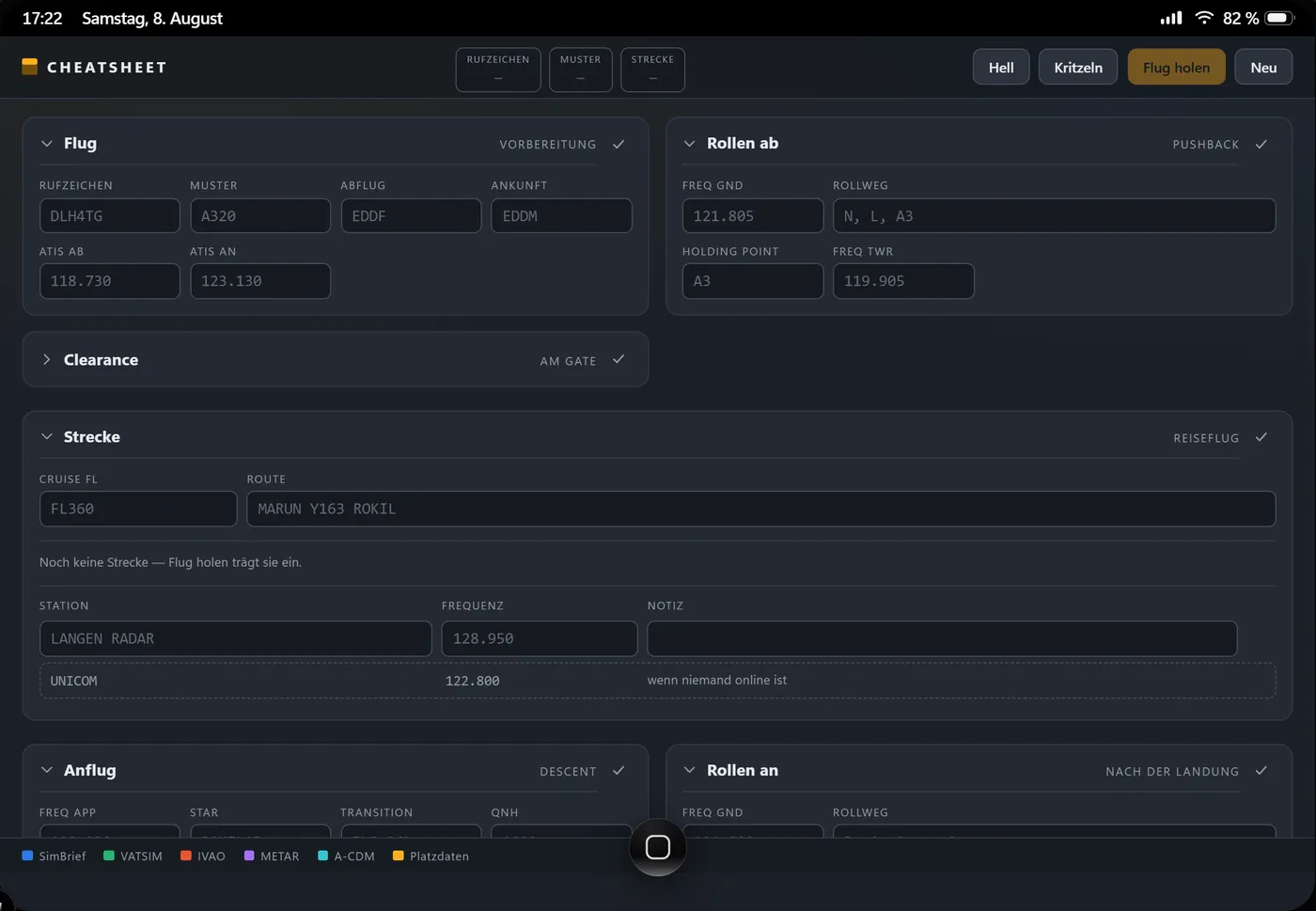
    Clearance, taxi, frequencies, ATIS, QNH and transition level, in the order they come at you. It fills itself from your OFP and from the network you are on, and everything else you write yourself — by keyboard or with a finger.

    CheatSheet
    CheatSheet with clearance, route and frequency fields
  6. 6Simulator · Pegasus

    Fly it

    Start Pegasus before pushback and forget it. The pad is not part of the recording — but it is a good second screen: the radars show where you actually are on the network, Weather keeps the destination in view, and flySmart! follows the leg.

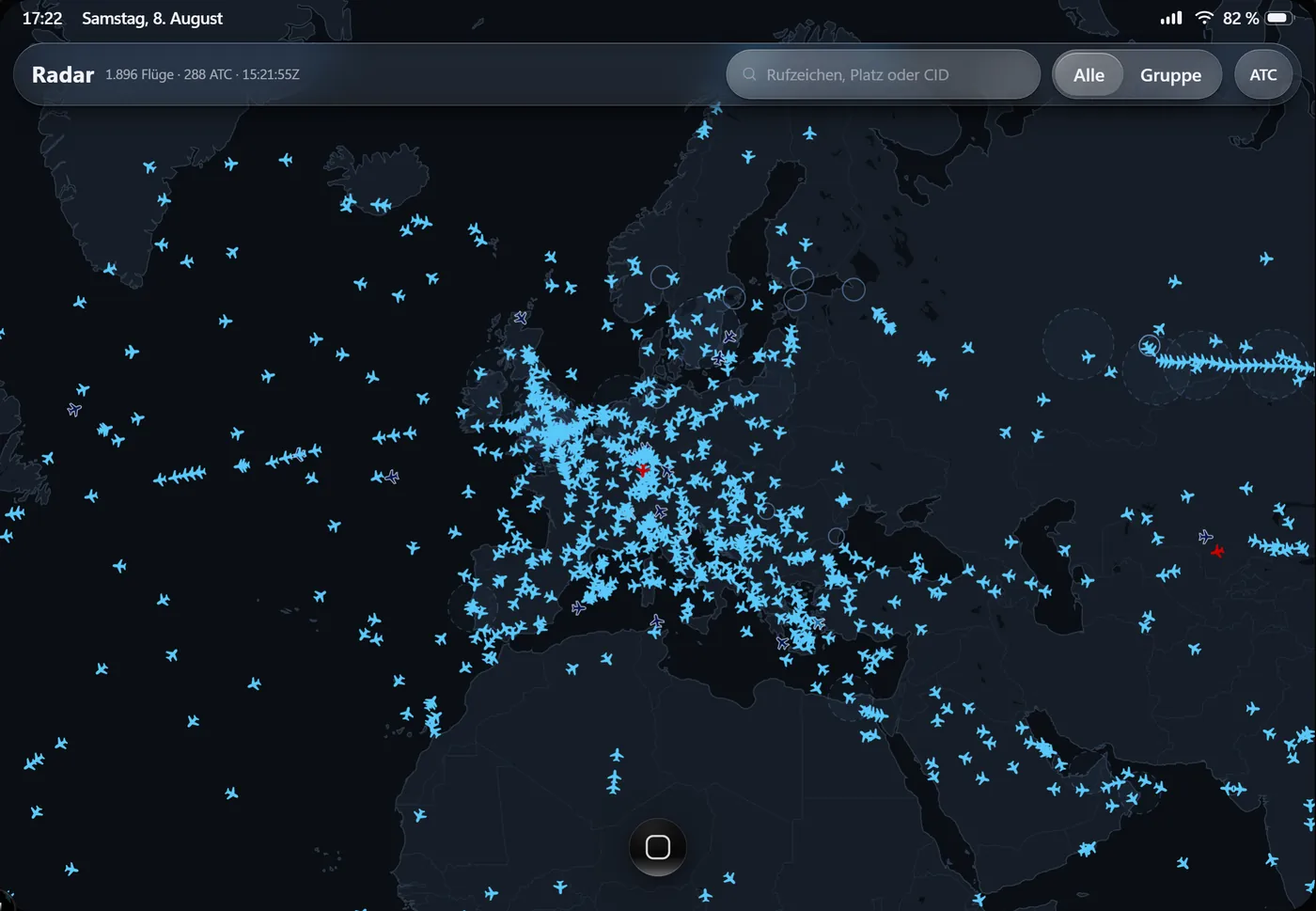
    VATSIM Radar
    VATSIM Radar with live traffic and staffed positions
  7. 7LHV Ops · after landing

    Report your actual times and fuel

    Pegasus files the PIREP; vAMSYS then removes the booking. The leg does not vanish from your roster: it stays there marked TIMES MISSING for up to 72 hours, waiting for the four times and the fuel you read off. Report them, and the sheet closes and the flight moves into the logbook.

    Reported times take priority over everything else. Turnaround, ETA, start and end all move with them, and the original plan stays beside them, small and struck through.

    LHV Ops → the flight → Report
    The report sheet: four actual times and the fuel, with the planned figures struck through beside them LHV OPS · REPORT DLH836 EDDF → EKCH TIMES MISSING OFF BLOCK 11:34z plan 11:30z TAKEOFF 11:48z plan 11:42z LANDING 12:51z plan 12:47z ON BLOCK 12:58z plan 12:55z FUEL ON BOARD read it off FINAL PAX read it off These two start empty on purpose — no guess to accept. Submit report Closes the sheet · moves it into Contrail
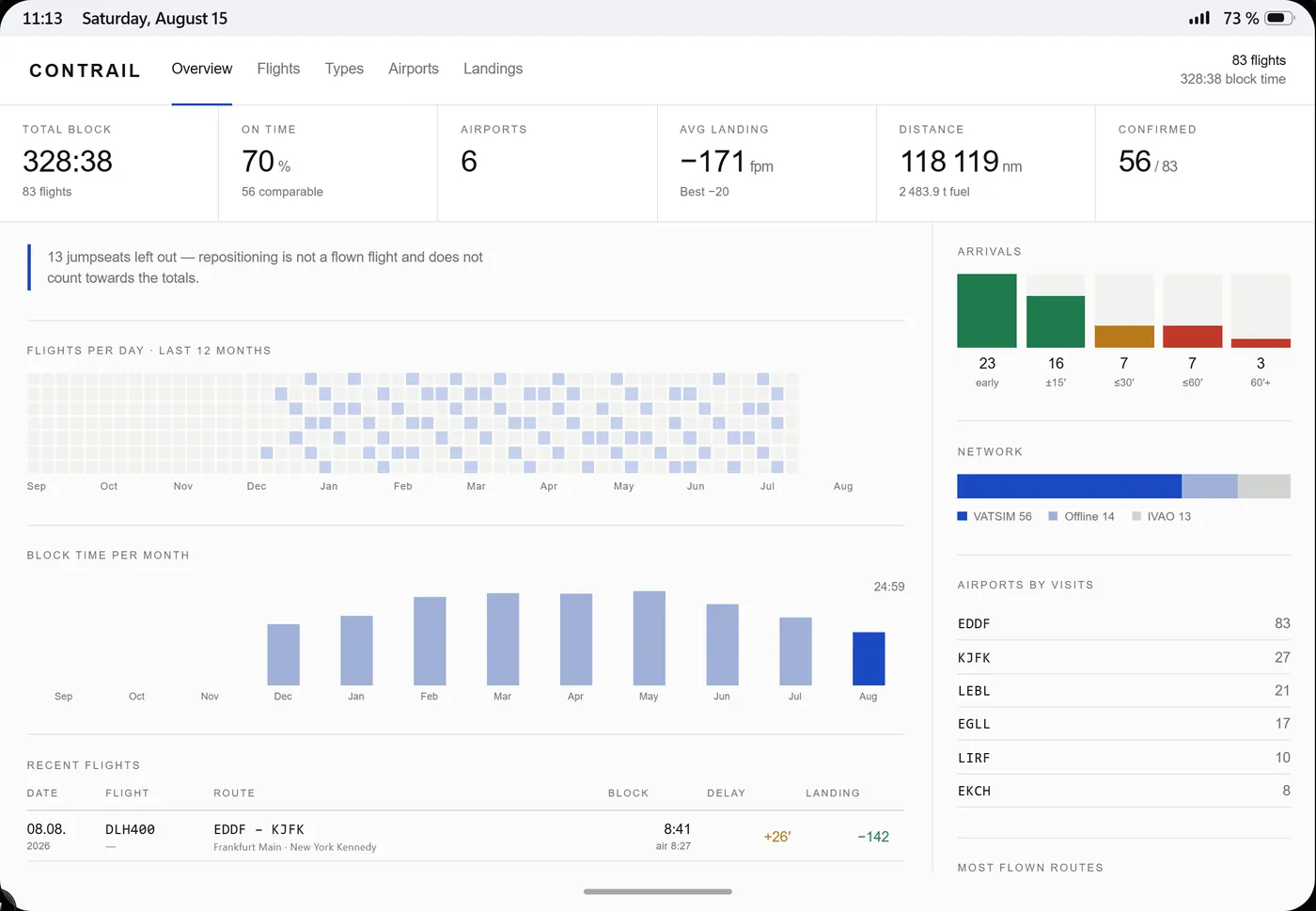
  8. 8Contrail · the logbook

    And it stays

    Every filed report lands here on its own: routes, times, types, totals — plus the flight file, with planned against flown track on a real map, the altitude profile, the runway, the touchdown and the weather of that day.

    Where something could not be resolved, it says so. An assumed figure is labelled as assumed rather than quietly printed as fact.

    Contrail
    Contrail with total hours, flights per month and the most recent legs
The catalogue

Every app, and what it is for

Twenty-seven apps in five groups. Tap any screenshot to see it full size. Where an app is marked Face ID, the pad asks for a personal check before it opens; where it says from the App Store, you can delete it and get it back later.

About the screenshots: they come from a demo pad, and the pad speaks two languages — so some of them show the German interface. Yours follows whatever you set under Settings → Language & Region.

Operations

The flight itself — before, during and after.

LHV Ops

DockAlways installedFace ID

The operational heart of the pad. A vAMSYS booking becomes a rotation, a flight sheet and a live briefing, without you typing anything twice.

  • My Flights — rotations with turnaround, layover, aircraft, registration and the leg that is current now.
  • eDesk — Inbox, Preflight, Weather and NOTAM, grouped by current, operational and previous flights.
  • Check-in arms one flight; the briefings that follow belong to it.
  • Report — actual times and fuel after the PIREP, which closes the sheet.
  • Profile — your rank, hours and standing.

Tip Hover any time on the sheet and it tells you where that figure came from: your report, an extrapolation, SimBrief, or the original booking.

flySmart!

From the App StoreAlways darkNeeds SimBrief ID

Your SimBrief OFP as an EFB: seven pages that each answer one question, instead of a thirty-page PDF you cannot page through in the cockpit.

  • Overview and Times — the numbers you want first, with plan, A-CDM and your own reported times side by side.
  • Flightplan — every waypoint with its planned figure, and a field for what the tank actually says.
  • Route — terrain, airspace, precipitation radar, SIGMET and only the ATC stations on your route.
  • Runways, Weather, Briefing — both ends with live wind components, and the pages you read once.

Tip Three buttons, three deliberate acts: Uplink brings the plan in, Refresh asks again and says whether anything changed, Unload throws it away.

CheatSheet

From the App StoreOwn light/dark switch

The kneeboard for online flying. One sheet, filled in the order things reach you on the radio — and writable wherever the network cannot help.

  • Callsign, route, levels, SID, STAR, squawk and the runway in use.
  • Frequencies, ATIS, QNH and transition level from the network you configured.
  • Live PDC / DCL and CPDLC logons where a staffed station publishes them.
  • Taxi notes and clearances by keyboard — or with a finger, straight onto the sheet.

Tip It refreshes about every two minutes on its own. What it cannot source, it leaves blank for you rather than filling in a guess.

Ground

From the App StoreNeeds GSX ProYour own network

GSX Pro from the pad. Everything you would otherwise pull up the simulator's menu for in the middle of a turnaround happens here — and your eyes stay outside.

  • The board shows the turnaround at a glance: what is running, how far boarding and refuelling have got, what is still outstanding and who is handling.
  • One tap requests a service, another sends the jetway away again; the tile says whether it is on the aircraft right now.
  • Your flight sits alongside — the detected SimBrief plan, the off-block time that counts with a running clock, and the A-CDM target times once they are issued.
  • When GSX asks which handler to use, Ground picks the airline's one for you, visibly and interruptibly.
  • The invoice at the end, on its own tab.

Tip This is the one app on the pad whose data does not come from us: it talks to GSX on your own network, on this computer or on the one you fly on. Its remote server is on by default — the address is in GSX under Settings → Network. Without a connection Ground shows nothing and says why.

Contrail

From the App StoreYour logbook

Every filed report, drawn back out. Nothing to enter — the trail writes itself, and it is the one app on the pad that is purely yours.

  • Totals, routes, aircraft types and history at a glance.
  • Planned against flown track on a real map, with the altitude profile beneath it.
  • Runway use per airport, the approach, and which main gear touched first.
  • Archived weather for the day you flew it.

Tip No Face ID, on purpose: your own career is not company data. Contrail also tells you when it had to leave something out, and how much.

Manuals

DockFace IDComing soon

The fleet library: operating manuals per aircraft type, organised by chapter, with full-text search across the whole shelf.

  • OM-B material per type, chapter by chapter.
  • Search the complete library and jump straight to the matching chapter.
  • Behind Face ID, like everything that belongs to the operation.

Tip The icon is already in your dock and the app opens — for now it only announces itself. It goes live when the manuals are signed off.

simref

From the App StoreBy ezy887External site

A quick-reference library for line operations — figures, procedures and tables, one tap away.

  • The one app in the catalogue that is a third-party site in a pad window.
  • It stays visibly separate: it is not LH Virtual data and never claims to be.
  • It brings its own sign-in. That account belongs to the site, not to us — the pad neither creates it nor knows about it.

Tip The window belongs to the pad, the content belongs to its author. If the site is down, the window says so.

Networks and weather

What is going on outside your cockpit.

VATSIM Radar

From the App StoreRefreshes every 15 s

The whole VATSIM network on a map the pad draws itself — no third-party service in between.

  • Every flight and every staffed position, with flight plans, progress and ATIS.
  • Search by callsign, airport or VATSIM CID.
  • Group traffic flies in its airline colours and stays readable above everyone else.
  • Your own flight wears a ring and opens its route by itself.

Tip Your flight only lights up if your VATSIM CID is in Settings → Sim Connections.

IVAO Radar

From the App StoreRefreshes every 15 s

The same idea for the other network, deliberately dressed differently so the two are never confused.

  • Flights, flight plans, staffed positions and ATIS straight from IVAO.
  • Search by callsign, airport or IVAO VID.
  • Same map craft underneath, different source and different identity on top.

Tip It reads the IVAO VID from the same settings page as everything else. One entry, every app.

Weather

Always installedAlso a widget

The airports on your roster appear by themselves; anything else you add. The scene is built from the live report, and the raw METAR stays one tap below it.

  • METAR and TAF for your booked airports and any station you add.
  • Cloud, rain, visibility, wind and daylight shape what you see.
  • Severe weather can reach you as a notification — but only for a flight that is still ahead of you or under way.
  • Where you are right now gets an alert too, quietly: only while the pad is open, and gone when the warning is.

Tip Widget, app icon and app all read the same source. If they ever disagreed, one of them would be lying.

Training and knowledge

Learning, on the ground and in the cruise.

Academy

From the App StoreSame progress as the browser
Courses, lessons and checkrides — the same record you see in the browser.

The VA training platform as a pad app: type courses, flight preparation, chart reading and getting started on the networks.

  • Lessons, diagrams and answers use the full tablet width.
  • Start at your desk, carry on here — it is the same record, not a copy.
  • Checkrides and badges count exactly as they do in the dashboard.

Tip Your progress lives in Academy itself. Whatever you answer on the pad shows up in the dashboard immediately.

langLearn

From the App StoreProgress stays on the pad

Short sessions for the quiet part of a flight: language, aircraft knowledge and city recognition.

  • Seven language courses, 150 words and phrases each, plus a Swiss German bonus course.
  • A320 and B777 questions taken from the Academy material.
  • A 150-part city quiz: landmarks, capitals, urban patterns, runway layouts, IATA and ICAO codes.

Tip Progress stays on your device record — no leaderboard, nobody watching.

Flight Pixels

From the App StoreOne round a day

Five aviation targets every day — aircraft, tower, cockpit, engine and wingtip — as a coarse mosaic you buy your way into, tile by tile.

  • Open a tile, or sharpen one you already opened; you choose where to spend.
  • Answer step by step: stop with partial knowledge, or go all the way to the exact variant.
  • Two wrong answers cost the round; every aid costs points.
  • Daily and weekly standings, listed by pilot ID only.

Tip Everyone gets the same five targets each day, so it is worth comparing notes in Discord — after you have played.

Community and partners

Everything the group and the people around it publish.

Scenery Vote

From the App StoreSame vote as the dashboard

Which airports get a scenery worth flying to? Your votes weight the catalogue behind our future focus airports — and you cast them by swiping.

  • Right for yes, left for no, up for a superlike, down for don't know.
  • One vote per add-on for 90 days — from the pad or from the dashboard, it is the same vote.
  • Cards say clearly whether an add-on is FREEWARE or PAYWARE.
  • A finished streak is worth 100 points on your next accepted PIREP.

Tip One superlike per day. Spend it on something that really is outstanding.

Photos

Always installedCommunity screenshots

What the community posted in Discord, arranged like a photo library.

  • All Photos, My Shots and Favourites as separate albums.
  • Open one for paging, information, zoom and a favourite that lasts.
  • New images appear after a two-hour review period.
  • Anything removed in Discord or the Social Studio disappears here too.

Tip Only published community images appear — the pad does not read private channels. Empty library? Post a screenshot in Discord and it turns up here.

UpUp

From the App StoreAlways dark

Everything the group and its partners publish, in one vertical stream. Swipe up for the next one.

  • Developer trailers, creator videos, network events and the simNews feed together.
  • The order is reshuffled every time you open it.
  • Every post names who it came from and opens the original.

Tip If a channel says not set up, that is honest reporting — it means a key is missing, not that the partner posted nothing.

simNews

From the App StoreIndependent source

Short stories about add-ons, sceneries and platforms, collected from public sources several times an hour.

  • Every item names and links its source.
  • A calm reading view, native to the pad.
  • If the source hiccups, the last good feed stays readable.

Tip simNews is not ours. The pad shows it as what it is and never dresses it up as VA news.

HUES

Partner appAlways dark

Color the Sky: the HUES livery catalogue and its release feed, in one app.

  • Search liveries by airline, aircraft, registration, painter or simulator.
  • The liveries of the airlines we fly sit at the top, fleet packs first.
  • Release stories come from the HUES developers themselves.
  • Downloading happens in HUES Hub, one tap away.

Tip Get it from the Partner tab in the App Store. Nothing is installed onto the pad itself.

MK Studios

Partner appCatalogue only

The partner's complete scenery catalogue: thirty airports from Keflavik to Adelaide, Zurich, Dusseldorf, Rome and Helsinki among them.

  • Search by airport name or ICAO, filter by simulator.
  • Images, feature lists and two gallery views per product.
  • The way into the right shop, straight from the detail page.

Tip The catalogue is generated from the partner's own source, so new releases do not depend on somebody remembering to type them in.

Company post and everyday tools

The parts a tablet is expected to have.

Mail

DockAlways installedShared with the dashboard

Your company inbox: crew notices, polls, the automatic operational post — and the welcome letter you got on your first sign-in.

  • Personal and role-based post, in proper letter form.
  • Attachments such as the monthly duty-hours sheet open as documents.
  • Write back to Ops or Crew from the same place.
  • Read state stays in sync with the dashboard.

Tip There is no second mailbox and no second password — the vAMSYS session is the identity.

Messages

Always installedService SMS

Short service messages as ordinary conversations — including the roaming welcome when your simulated location changes country.

  • Contact image, country flag, structured text and a link where there is one.
  • Delete what you have read; unread items feed the badge on the icon.
  • Delivered through the same notification layer as everything else.

Tip Confidential text is never rendered on the lock screen, whatever your preview setting says.

Calendar

DockAlways installedLive icon

Company dates and your own plans in one calendar, without becoming one data source.

  • Your booked roster, weekly and special events, HQ dates and anniversaries arrive by themselves.
  • Day, week and month views with a now-line; overlapping entries sit side by side.
  • VATSIM and IVAO network events can be laid over the top — limited to airports we actually serve.
  • Switch individual calendars off when they get in the way.

Tip Flights are read-only and keep their real flight number. Your own entries can carry several reminder stages.

Clock

Always installedLive icon

Zulu is always in sight, and the world clock is built for people who keep changing time zones.

  • City cards with local time, UTC offset and where the daylight is.
  • Alarms can follow local time or stay pinned to Zulu.
  • Stopwatch and timer, as expected.

Tip Alarms survive closing the app — they come back through the system notification layer.

Calculator

Always installedAlways darkNo network

The system calculator, immediately there, dark in every appearance — like the one on a real tablet.

  • Standard arithmetic with a readable running display.
  • Keyboard and touch drive the same state.
  • No server call at all.

Tip A small tool, deliberately instant. It is the fastest thing on the pad.

Settings

DockAlways installedStart here for IDs

Everything that belongs to this pad. The sidebar has a search field — use it before you go hunting.

  • Sim Connections — SimBrief, VATSIM, IVAO and SayIntentions IDs, entered once for every app.
  • Display & Brightness, Wallpaper, Home Screen — how it looks.
  • Notifications — which apps may reach you, previews, and web push permission.
  • Software Update, iPad Storage, About — versions, installed apps, and what is on the device.

Tip SimBrief wants the numeric pilot ID, not your username. That one mismatch is the most common reason flySmart! finds nothing.

App Store

DockAlways installedBadge counts pending updates

Where apps arrive, leave and update. There is no store server behind it — what ships with the pad is the newest there is.

  • Four tabs: Today, Airlines, Apps and Partner.
  • Release notes explain what changed before you install.
  • Open an installed app straight from its card.
  • Your account, top right, collects the pending updates.

Tip When it updates itself, the interface reloads afterwards. That is expected — it just swapped out the code it was running.

Browser

Always installedComing soon
Held back on purpose, not forgotten.

When it comes, it will be a start page of the VA services that can honestly open inside the pad.

  • One clear tile per supported service.
  • Sites open in the pad only where the window can tell the truth about where you are.
  • No decorative address bar pretending to steer a page it cannot read.

Tip A window with a fake address bar would be the first place the illusion gave itself away. That is why it is not there yet.

Lookup

“Where do I find…?”

The fastest way through the pad. One question, one app.

You want to knowOpenThen
What am I flying today?LHV OpsMy Flights — or the My Flights widget on the home screen.
What time do I report, and when am I off?LHV OpsThe rotation header: START, BLOCK, DUTY, END.
Is there anything I need to read before this flight?LHV OpseDesk → Inbox, Preflight, Weather, NOTAM. Check in first.
How much fuel should I have at this waypoint?flySmart!Flightplan — plan figure per waypoint, your reading beside it.
Which runway, and what is the wind doing?flySmart!Runways — both ends, components from the live METAR.
What is my squawk and my clearance?CheatSheetClearance block, top of the sheet.
Which frequency comes next?CheatSheetThe strip runs in the order they reach you.
Who is online, and is anybody controlling?VATSIM RadarOr IVAO Radar for the other network.
What is the weather at my destination?WeatherBooked airports are already there. Raw METAR one tap below.
How many hours do I have, and where have I been?ContrailTotals up front, the flight file behind each entry.
How was that landing, really?ContrailThe flight file → approach and touchdown.
Did the company send me anything?MailSame inbox as the dashboard, same read state.
When is the next event?CalendarCompany dates arrive by themselves; network events can be laid over.
What time is it in Zulu?ClockWorld clock; alarms can stay pinned to Zulu.
Where do I put my SimBrief / VATSIM / IVAO ID?SettingsSim Connections. Once, for every app.
Why does my pad look different from someone else's?App StoreDifferent apps installed, different pages, different widgets.
What changed in this app?App StoreRelease notes on the app's card, before you update.
Where do I vote on sceneries?Scenery VoteSwipe. The same vote counts in the dashboard.
Where is my course progress?AcademyThe same record as the browser — carry on where you stopped.
Something is wrong and I want to tell somebodyMailWrite to Ops or Crew — or say it in Discord.
Good to know

How fresh is what you see

The pad shares one budget of requests across the whole airline, so nothing is fetched more often than it is worth. These are the rhythms you can rely on.

15 sBoth radars
60 sRoster, eDesk, messages, notifications
2 minCheatSheet, the live flySmart! icon
5 minsimNews, HUES
10 minWeather and its widget
on openMail, Photos, logbook, catalogues

Where it all comes from

Nothing on the pad is invented. Every figure has a source, and the pad names it when it matters.

Sources feed the pad's own server, which serves the apps vAMSYS — bookings, PIREPs SimBrief — your OFP VATSIM & IVAO — the networks METAR, TAF, SIGMET A-CDM, NOTAM, flow Academy, Scenery, partners The pad's own server Checks who you are, fetches once for everybody, keeps it for as long as it is good, and hands out only what you may see. The apps No keys, no tokens and no foreign raw data ever reach your browser. Nothing known? Then it says so — never a made-up value.
Questions

The things pilots ask

Open a question for the short answer. If it is not here, Discord is the fastest way to a human.

Getting in

What exactly is the Crew Pad?

A simulated company tablet at lh-virtual.app. It runs in your browser, it is issued to you by the airline, and it holds your roster, your briefing, your mail, your logbook and the tools around them. There is nothing to download.

Do I need an account, or an app from a store?

Neither. You sign in with the vAMSYS account you already have; the pad never sees your password. It is a website, so any modern browser works.

It says I cannot get in. Why?

Sign out and in again once — a vAMSYS session can expire while the tab stays open. If it still refuses, say so in Discord or by mail to Ops.

What is the passcode?

The digits of your pilot ID. DLH1049 unlocks with 1049, four or five digits depending on your ID. It is not a secret and it is not meant to be — see the next question.

Then what actually protects my data?

Your vAMSYS session. Every piece of data is fetched and authorised on the server against your pilot record before it is sent to your browser; the passcode is there so the device behaves like a device. Face ID in front of Ops and Manuals is the same idea one level up — it belongs to the apps that hold company data, not to the device.

Face ID refused me. Is it broken?

No. Roughly one open in four, the first look is refused on purpose — real hardware does that too. Only ever the first one: try again and it goes through.

Can I use it on my phone?

Yes. On a touch device the pad fills the screen edge to edge, without a drawn tablet frame around it. It is laid out for an 11-inch tablet in landscape, so a phone is usable rather than comfortable.

How do I get it as a proper app icon?

Use your browser's Share → Add to Home Screen (iOS) or Install (Chrome, Edge). You get an icon, a full screen and no browser bar, and it keeps updating itself.

German or English?

Both. Settings → Language & Region switches the whole device, apps included.

Using the device

How do I get out of an app?

Tap the home indicator — the short bar at the bottom edge. That is the only way out, and it works from everywhere.

Where is Control Center?

Pull down from the top right corner. You get airplane mode, Wi-Fi, dark mode, system sounds, brightness and volume. Pull down from the top edge instead and you get Notification Center.

How do I move apps around or make a folder?

Press and hold any icon until everything wobbles. Then drag icons between pages, drop one on another to create a folder, or delete apps you do not want. Tap anywhere else to stop.

How do I add or remove widgets?

Press and hold an empty spot on the first home screen page. You can choose Weather, My Flights and Calendar, and reorder them.

I deleted an app. Is it gone?

No — get it back from the App Store whenever you like, with everything it knew about you intact. System apps such as Ops, Mail, Settings, App Store, Weather, Clock, Calculator, Calendar, Messages and Photos cannot be deleted at all.

Why did the interface reload after an update?

Because you updated the App Store from inside the App Store — it swapped out the code it was running in. It is the only honest order of events, and its release notes warn you in advance.

There is a red dot on Settings.

A system update is available. Settings → Software Update. The dot comes from comparing the shipped version with the one installed on your pad, so it cannot be wrong.

What are the smudges on the glass?

Signs of use. The glass picks up fingerprints where you tap and smears where you swipe, and there is a cleaning cloth to wipe them off. If you would rather not have them: Settings → Display & Brightness.

Why did airplane mode switch itself on?

Because you are airborne on an active flight. While that is the case the switch is locked, and the battery drains the way it would on a long leg. Both follow your vAMSYS flight, not a timer.

Does my layout follow me to another computer?

Yes. Pages, folders, widgets, installed apps and every setting belong to your pilot account, not to the browser you happened to use.

Does it work without a connection?

Partly. The pad itself loads and the local tools keep working, but everything live — roster, weather, networks, mail — needs a connection, and the apps say so instead of showing you yesterday as if it were today.

Flights and operations

I booked a flight and the pad does not show it.

Give it up to a minute — the roster refreshes about every 60 seconds — and pull the roster fresh in LHV Ops if you are impatient; it will also tell you how old the bookings it is showing are. If it still does not appear, check that the booking really is on your vAMSYS account.

What does “check in” actually do?

It arms exactly one flight. From then on the pad produces briefings for that flight — preflight, weather and NOTAM post arrive in eDesk, staggered rather than all at once, and they reach you as notifications even with Ops closed. Without a check-in there is nothing to produce them for.

Only one flight can be checked in at a time, and the state belongs to your account: reloading the pad does not check you out.

I checked in but no briefing arrived.

Briefings only exist inside the flight's operating window — from about three hours before departure until an hour after arrival, shifted along with your reported times. Outside that window the pad deliberately stays quiet.

Why does flySmart! not load my flight plan by itself?

Because SimBrief always hands out your newest plan. A pad that quietly adopted a plan you made the day before would have taken a decision that belongs to you. Press Uplink when you are ready.

flySmart! says it cannot find a plan.

Almost always the SimBrief ID. It wants the numeric pilot ID from your SimBrief account, not your username. Settings → Sim Connections.

I re-planned mid-flight and now there is a banner.

That is the app asking whether to take the new plan. It does not switch by itself, because the fuel figures you entered belong to waypoints on the old route. Decide when it suits you.

Which time is the pad actually using?

The strongest one it has, in this order: a time you reported, then an expectation calculated from it, then the SimBrief plan you loaded, then the vAMSYS booking. The ones it did not use stay visible beside it, struck through, and hovering any figure tells you where it came from. Turnaround, ETA, start and end all follow — duty time stays anchored to your planned report time.

My flight disappeared from vAMSYS but is still on the pad.

That is deliberate. vAMSYS removes the booking when the PIREP is filed; the pad keeps the leg on your roster for up to 72 hours marked TIMES MISSING, so you can still report your actual times and fuel. Report them and the sheet closes and the flight moves into Contrail. It never blocks the check-in of your next leg.

Do I have to report actual times, or is it optional?

The PIREP is filed by Pegasus either way. Reporting your actual times and fuel completes the record — and it is what makes the flight sheet close, the logbook entry complete and the small bonus attach to that report.

The pad shows a gate or stand — where is that from?

From live operational sources, not invented. Once a stand or gate has been recognised for your flight the pad remembers it and keeps showing it even after the live source goes quiet — and if nothing was ever published, it shows nothing at all rather than a guess.

Does the pad talk to my simulator?

No, and it is not planned. Pegasus records the flight and files the PIREP. The pad prepares the flight and reads the result — it never sits between you and the sim.

My aircraft does not show up on the radar.

The radars find you by your network ID. Put your VATSIM CID and IVAO VID into Settings → Sim Connections; then your flight wears the ring and opens its route by itself.

Which callsign do I file with?

The one on your vAMSYS booking — DLH…, OCN… and so on. The commercial number (LH…, 4Y…, EN…) belongs on the schedule and in your paperwork. The booking page shows exactly what to enter.

Can I earn points from the pad?

Indirectly. Reporting your actual times and fuel attaches a small bonus to that report, and a completed Scenery Vote streak is worth 100 points on your next accepted PIREP. Nothing on the pad awards points out of thin air.

Data, privacy and honesty

Where does all this data come from?

vAMSYS for bookings and reports, SimBrief for your OFP, VATSIM and IVAO for the networks, public aviation weather for METAR, TAF and SIGMET, live operational feeds for A-CDM, NOTAM and flow, plus our own Academy, Scenery Vote and partner services. Everything is fetched by the pad's server, never by your browser.

Do you store my SimBrief or VATSIM password?

No. The pad stores identifiers only — your SimBrief pilot ID, your VATSIM CID, your IVAO VID. There is nothing to log in to and nothing to leak.

Why does it sometimes say “unknown” instead of a number?

Because it does not know. The pad is built to say so rather than fill a gap with something plausible — an assumed value is labelled as assumed, a missing one is named as missing. A confident wrong number in a cockpit is worse than an honest blank.

Can other pilots see my flights?

No. Everything personal is fetched against your own session. What is public stays public: your callsign on the network, your entries in the game leaderboards — and those show pilot IDs only.

What appears on the lock screen?

Whatever you allow in Settings → Notifications. Previews default to “when unlocked”, because the pad is assumed to be lying visible in a cockpit. Anything flagged confidential is never previewed, whatever you set.

How does the pad decide how often to fetch something?

By what it is worth. The whole airline shares one request budget with vAMSYS, so the pad fetches once for everybody and keeps the answer for as long as it stays good. That is why the radars are 15 seconds and the weather is 10 minutes.

When something is off

An app looks stale.

Go home and open it again — most apps refresh when they come back into view. The roster and flySmart! also have a refresh of their own, and flySmart! will tell you whether anything actually changed.

An app is empty and says nothing at all.

Check the ID it depends on first (Settings → Sim Connections), then your connection. An app that has nothing to show is supposed to say why — if one stays silent, that is worth reporting.

Push notifications never arrive.

Two switches, both needed: allow notifications for the pad in your browser, and turn web push on in Settings → Notifications. On iOS, push only works once the pad is on your home screen.

The device looks squashed or tiny.

The pad grows with the window between certain limits. Below that it drops the drawn frame and uses the whole screen instead — a shrunken tablet is harder to use than an honest full-screen one. Make the window bigger and the frame comes back.

I found something that is wrong.

Please say so. Mail to Ops or Crew from the pad, or a line in Discord. Errors in operational figures are the ones we want to hear about first.

The second guide

Connex, PIL and the cost index

What arrives in the cockpit on the way into the hub: the connections off your flight, the Arrival PIL with who is about to miss theirs, and the advisory on whether flying faster would buy any of it back. All of it lands in your eDesk.

Read the Connex & PIL Guide

Still stuck? Discord is the fastest way to an answer — someone is always around.

Ask on Discord